
• About
    • Who We Are
    • What We Do
    • The Management Team
    • Global
  • Solutions
    • Microsoft Dynamics 365 CRM Development
    • Cloud Technology
    • Business Central Development
    • Data and AI
    • Enterprise Content Search
  • Services
    • AI Solutions
      • Getting Ready for AI
      • Dynamics 365 Agents
      • ECLEVA Agents
    • Business Systems Consulting
    • Enterprise Resource Planning (ERP)
      • Wiise Business Central
    • Customer Engagement (CRM) & Marketing Automation
    • Business Intelligence (Power BI)
    • Rapid Application Development (PowerApps)
      • HSE App by ECLEVA
    • Process Automation (RPA)
  • Sectors
    • Corporate & SME
    • Not-For-Profit
    • Construction
    • Financial Services
    • Education
    • Manufacturing
    • Government
  • Customer Stories
  • Insights
    • Blog
    • News
    • Videos
  • Contact
    • Contact ECLEVA
    • Customer Support
+61 2 9467 9300
Get in touch
  • About
    • Who We Are
    • What We Do
    • The Management Team
    • Global
  • Solutions
    • Microsoft Dynamics 365 CRM Development
    • Cloud Technology
    • Business Central Development
    • Data and AI
    • Enterprise Content Search
  • Services
    • AI Solutions
      • Getting Ready for AI
      • Dynamics 365 Agents
      • ECLEVA Agents
    • Business Systems Consulting
    • Enterprise Resource Planning (ERP)
      • Wiise Business Central
    • Customer Engagement (CRM) & Marketing Automation
    • Business Intelligence (Power BI)
    • Rapid Application Development (PowerApps)
      • HSE App by ECLEVA
    • Process Automation (RPA)
  • Sectors
    • Corporate & SME
    • Not-For-Profit
    • Construction
    • Financial Services
    • Education
    • Manufacturing
    • Government
  • Customer Stories
  • Insights
    • Blog
    • News
    • Videos
  • Contact
    • Contact ECLEVA
    • Customer Support
+61 2 9467 9300
Get in touch
  • About
    • Who We Are
    • What We Do
    • The Management Team
    • Global
  • Solutions
    • Microsoft Dynamics 365 CRM Development
    • Cloud Technology
    • Business Central Development
    • Data and AI
    • Enterprise Content Search
  • Services
    • AI Solutions
      • Getting Ready for AI
      • Dynamics 365 Agents
      • ECLEVA Agents
    • Business Systems Consulting
    • Enterprise Resource Planning (ERP)
      • Wiise Business Central
    • Customer Engagement (CRM) & Marketing Automation
    • Business Intelligence (Power BI)
    • Rapid Application Development (PowerApps)
      • HSE App by ECLEVA
    • Process Automation (RPA)
  • Sectors
    • Corporate & SME
    • Not-For-Profit
    • Construction
    • Financial Services
    • Education
    • Manufacturing
    • Government
  • Customer Stories
  • Insights
    • Blog
    • News
    • Videos
  • Contact
    • Contact ECLEVA
    • Customer Support
  • About
    • Who We Are
    • What We Do
    • The Management Team
    • Global
  • Solutions
    • Microsoft Dynamics 365 CRM Development
    • Cloud Technology
    • Business Central Development
    • Data and AI
    • Enterprise Content Search
  • Services
    • AI Solutions
      • Getting Ready for AI
      • Dynamics 365 Agents
      • ECLEVA Agents
    • Business Systems Consulting
    • Enterprise Resource Planning (ERP)
      • Wiise Business Central
    • Customer Engagement (CRM) & Marketing Automation
    • Business Intelligence (Power BI)
    • Rapid Application Development (PowerApps)
      • HSE App by ECLEVA
    • Process Automation (RPA)
  • Sectors
    • Corporate & SME
    • Not-For-Profit
    • Construction
    • Financial Services
    • Education
    • Manufacturing
    • Government
  • Customer Stories
  • Insights
    • Blog
    • News
    • Videos
  • Contact
    • Contact ECLEVA
    • Customer Support

Blog

Home Uncategorized Configure Microsoft Dynamics marketing connector for CRM on-premises/IFD
IT

Configure Microsoft Dynamics marketing connector for CRM on-premises/IFD

November 18, 2019

To set up the MDM (Microsoft Dynamics Marketing) Connector with CRM on premise/IFD, you need to execute the following steps.


  • Configure CRM to Expose CRM certificate.
  • Install Marketing Connector for Microsoft Dynamics CRM.
  • Configure ACS Name Space on Windows Azure.
  • Add CRM certificate on Azure Service Bus.
  • Configure MDM & Start Initial Synchronization.


Configure CRM to Expose CRM certificate:


If you are using a Microsoft CRM online environment, then this step is *not* needed, because CRM online exposes the certificate, as shown in the below screenshot.
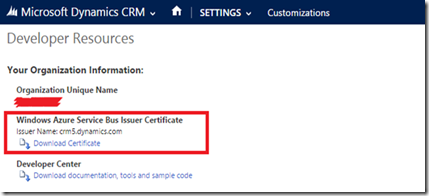
Microsoft CRM


After completing the below steps, CRM on-premises & IFD will expose the certificate.
The following items are pre-requisites for this.

  • A certificate from an issuing authority.
  • Logon access to a user account with the System Administrator role on the server.


Install the certificate in the certificate store of the server running the Microsoft Dynamics CRM asynchronous service.


Note: If the CRM application and Asynchronous service is installed on the same server, then you do not need follow the above step.


Generate a public key file in Base64 format from the certificate. To do this:

  • right-click on the certificate in the Personal/Certificates list
  • then under All Tasks in the context menu, select Export


Provide read access to the certificate for the asynchronous service user:

  • Right click on the certificate and click on the All Tasks
  • then click on the Manage Private Keys, as shown in the below screenshot
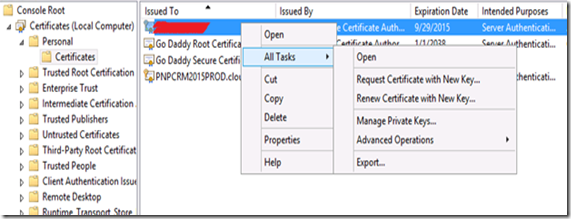
Microsoft CRM

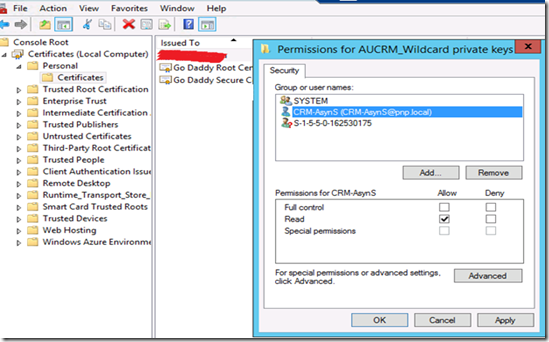
Then provide the read permission to the user, that is running the Asynchronous service. As shown in the below screenshot.
Microsoft CRM

In our case, we have given the read permission to the “CRM-AsynS” user, because our Asynchronous service is running under this user.


Configure MSCRM_Config database:

Add CRM Powershell Snap in.

Add-PSSnapin Microsoft.Crm.PowerShell


This command adds the CRM Windows PowerShell snap-in to the current session. The snap-in is registered during installation and setup of the CRM server.


Now you need to run the following command to Set the CRM certificate.


Set-CrmCertificate –CertificateType AppFabricIssuer –Name <issuerName> -StoreName My –StoreLocation LocalMachine -StoreFindType FindBySubjectDistinguishedName –DataFile <certificateFilename>


Issuer name <issuerName> can be any name. However, you will be using this same issuer name when configuring Microsoft Azure Active Directory Access Control Service (ACS). The DataFile parameter value is the file name or path of the public certificate key file.


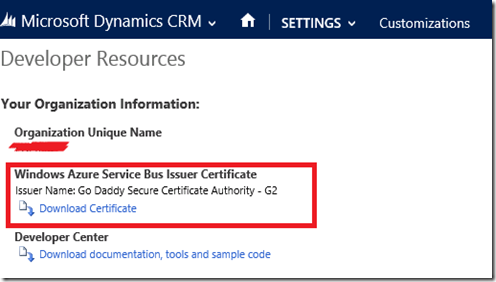
After performing the above steps, the certificate will be visible your CRM IFD environment. As shown in the below screenshot.
Microsoft CRM


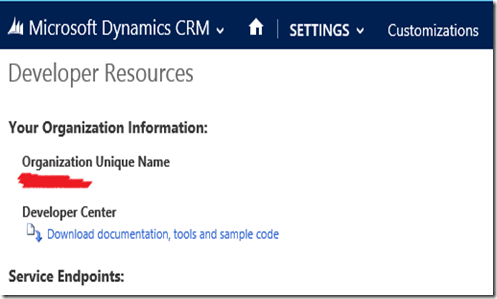
Before, performing the above steps, it was displaying as follows.
Microsoft CRM


Install Marketing Connector for Microsoft Dynamics CRM:


Download “Microsoft Dynamics Marketing CRM Connector” and install it.


After installation is complete, you will find the DynamicsMarketingConnectorSolution_managed.zip file in the installation path. As shown in the below screenshot.


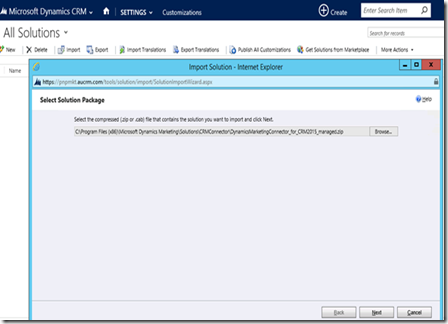
Now in CRM, you will need to import the “DynamicsMarketingConnector_for_CRM2015_managed.zip” solution. As shown in the below screenshot.
Microsoft CRM


And provide the “Dynamics Marketing Connector” security role to the user, you are setting up the connector with. As shown in the below screenshot.
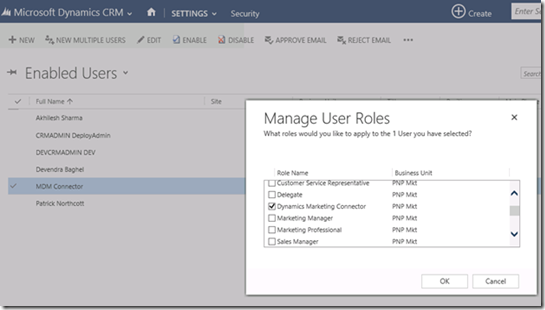
Microsoft CRM


Configure ACS Name Space on Windows Azure:


To configure the ACS Name space on Windows Azure, you need to first Add the Azure Account into your Power Shell. And for that you need to run the following command in Power Shell.


Add-AzureAccount


After running this command, it will display the login screen for Azure, as shown in the below screenshot.
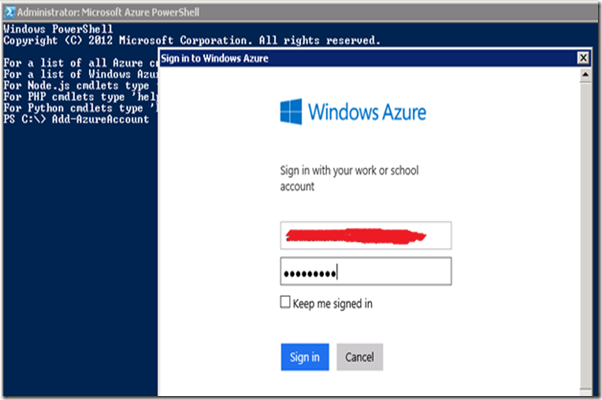
Microsoft CRM


Now you need to run the following command to create the ACS Name space in Azure.


New-AzureSBNamespace -Name YOUR_NAMESPACE -NamespaceType Messaging -Location “YOUR_LOCATION” -CreateACSNamespace 1


As shown in the below screenshot.
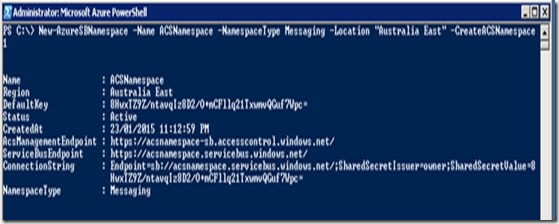
Microsoft CRM


Then, it will create the Service Bus in Azure. As shown in the below screenshot.
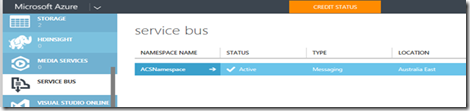
Microsoft CRM


Add the CRM certificate to the Azure Service Bus:

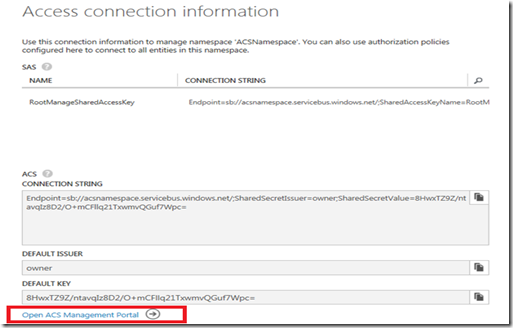
Now select your Service Bus and click on the “Connection Information” button on the Azure screen, then it will open the following screen.
Microsoft CRM


Note: you need to copy the Default Key, this is the Management Key. This key will be used when configuring MDM.


Click on the “Open ACS Management Portal” option. This action will open the ACS Management Portal.


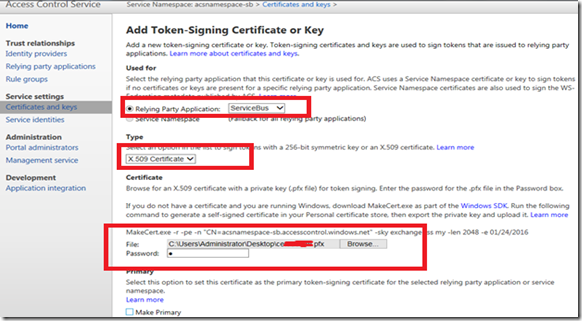
In the portal you will need to add the CRM certificate. This certificate must contain the public and private keys.


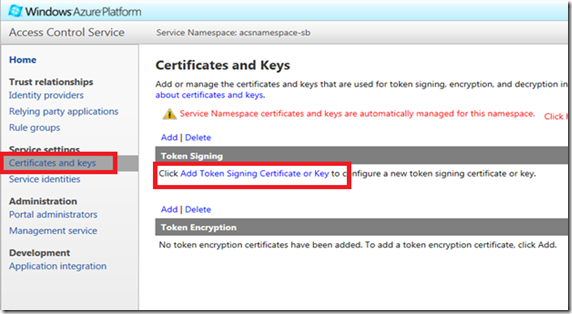
To add the certificate, go to the Certificates and Keys and click on the “Add Token Signing Certificate or Key” option, as shown in the below screenshot.
Microsoft CRM


In the Add Token Signing Certificate or Key page, you need to import your certificate and provide the password of that certificate.
Microsoft CRM


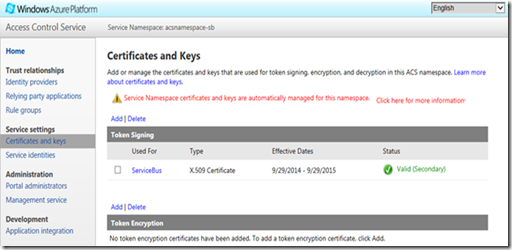
After the wizard completes, your certificate will be displayed as follows.
image
Configure MDM & Start Initial Synchronization:


To configure MDM connector, login to the Dynamics Marketing, and go to Settings and Integration Option. As shown in the below screenshot.
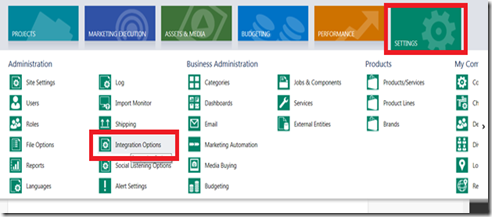
Microsoft CRM


Now enable the CRM Connector Service, as shown in the below screenshot.
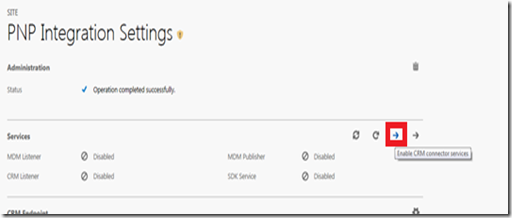
Microsoft CRM


The action above will enable the services, as shown in the below screenshot.
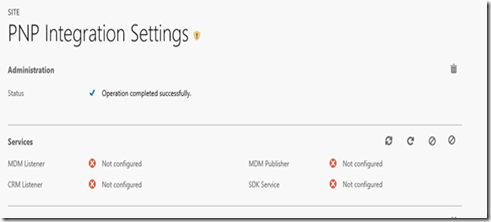
Microsoft CRM


Now configure the CRM End Points. To do this, you will need to give the CRM Service User information. This user will be used for integrating the MDM and CRM.
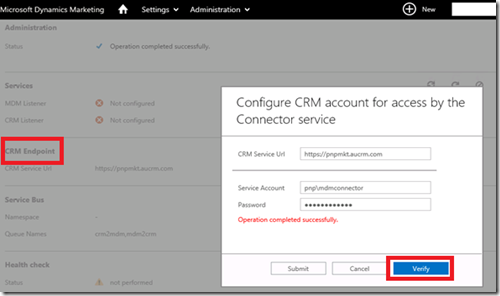
Microsoft CRM


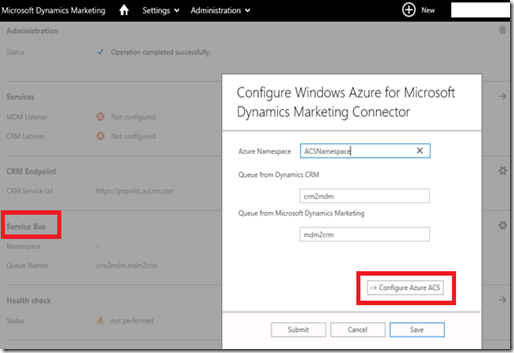
Now configure the Service Bus. To do this, you will need to provide the Azure Namespace, and ensure that you do not change the name of the Queue of CRM or MDM. As shown in the below screen.
Microsoft CRM


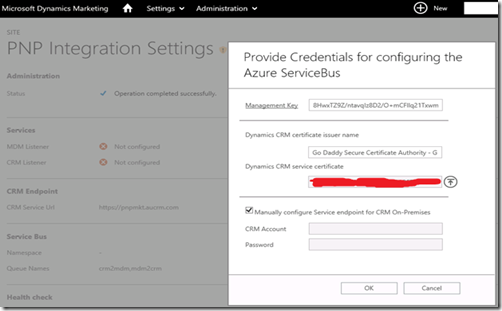
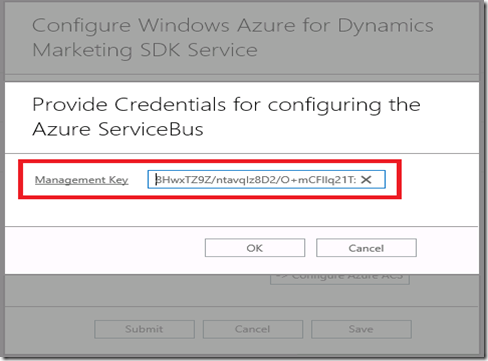
Now click on “Configure Azure ACS” option. In the “Provide Credentials for configuring the Azure ServiceBus” page, set the following values.


Management Key, this is the Default key, which we have copied in the earlier steps, when we were adding the CRM certificate in the Azure Service Bus.
Microsoft CRM


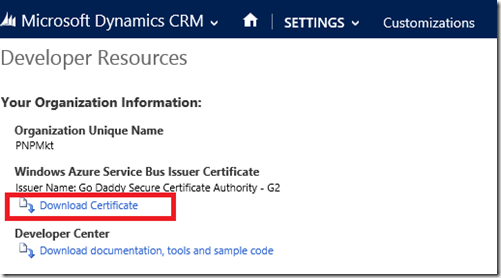
Dynamics CRM Service Certificate, you need to download the CRM certificate from the Developer Resources, screen, as shown below. And then you need to import that into the Dynamics CRM Service Certificate.
Microsoft CRM
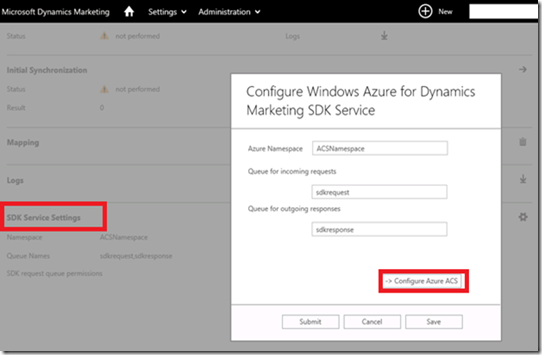
Now edit the SDK Service Settings, as shown in the below screen.
Microsoft CRM


Then click on the “Configure Azure ACS” option. In the “Provide Credentials for configuring the Azure ServiceBus” page, paste the Management Key, which we copied during the adding CRM certificate in Azure Service Bus.
Microsoft CRM


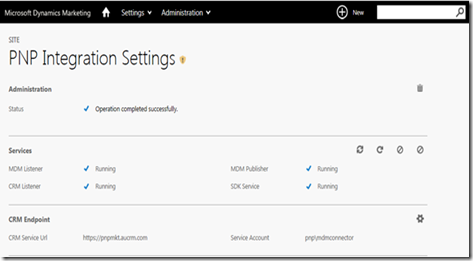
Now, it should start displaying that all the Services running, as shown below.
Microsoft CRM


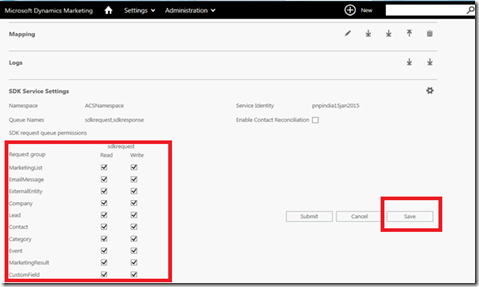
Now select appropriate options, and save the changes, as shown in the below screenshot.
Microsoft CRM


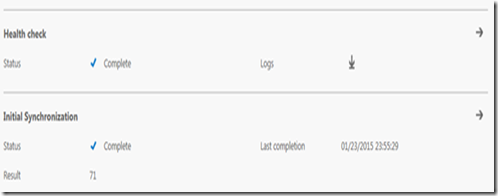
After setup is complete, you can perform a Health Check and the Initial Synchronization. As shown in the below.
Microsoft CRM


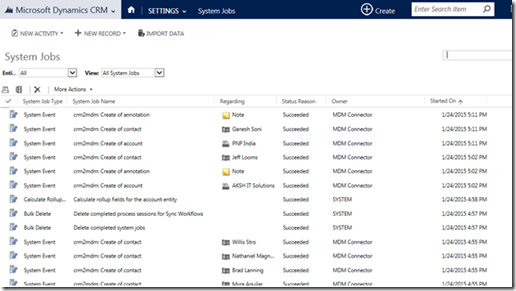
If you need to diagnose any issues with the MDM Connector, you can download the log from the Log section of the Marketing Integration page, as shown in the below screen.

Microsoft CRM


And from the CRM Side, you can view the System Jobs. As shown in the below screenshot.
Microsoft CRM


Hope this help you to configure the MDM integration with CRM!

Visit our website or if you have any query than don’t hesitate to

contact us

.

CRM management Dynamics CRM 2015 Microsoft Dynamics
139
All about hierarchy visualizations in CRM 2015November 18, 2019All about hierarchy visualizations in CRM 2015
Categories
  • Blog (41)
    • AI (3)
    • Business (10)
    • Business Intelligence​ (3)
    • Digital Transformation (10)
    • IT (21)
    • Marketing (1)
  • News (18)
    • Business (11)
    • IT (5)
    • Sales (2)
  • Uncategorized (1)
  • Video (34)
    • Business (29)
    • Business intelligence (3)
    • Digital transformation (18)
    • IT (23)
    • Process automation (2)
Recent Posts
  • Reconciliation Reimagined: How Copilot and Business Central Transform Finance Operations
  • test
  • Business Central or CRM First? How Senior Leaders Can Make the Right Call
  • ECLEVA Presents: Real Ways AI Can Power Your Business
  • Developing Intelligent Supply Chains with Microsoft Dynamics 365 for Supply Chain Management


ECLEVA
© ECLEVA 2025.

All rights reserved.
Privacy Policy

Solutions

Business Systems Consulting

Customer Engagement (CRM) & Marketing Automation

Rapid Application Development (PowerApps)

Process Automation (RPA)

Business Intelligence (Power BI)

Sectors

Corporate & SME

Not-for-profit

Construction

Financial Services

Education

Contact

Address:

Level 11, 56 Berry Street,
North Sydney, NSW 2060

Phone:

+61 2 9467 9300

Address:

401-402, R M Arcade, Near Goverdhan Park, Taxsila School Road, Vastral, Ahmedabad 382418

Phone:

+91 98244 60130

Website:

www.ecleva.com

#integrio_button_694be70539918 .wgl_button_link { color: rgba(255,255,255,1); }#integrio_button_694be70539918 .wgl_button_link:hover { color: rgba(12,90,219,1); }#integrio_button_694be70539918 .wgl_button_link { border-color: rgba(255,255,255,1); background-color: rgba(49,49,49,0.01); }#integrio_button_694be70539918 .wgl_button_link:hover { border-color: rgba(255,255,255,1); background-color: rgba(255,255,255,1); }#integrio_button_694be70539918.effect_3d .link_wrapper { color: rgba(255,255,255,1); }#integrio_button_694be7053bf36 .wgl_button_link { color: rgba(255,255,255,1); }#integrio_button_694be7053bf36 .wgl_button_link:hover { color: rgba(12,90,219,1); }#integrio_button_694be7053bf36 .wgl_button_link { border-color: rgba(255,255,255,1); background-color: rgba(49,49,49,0); }#integrio_button_694be7053bf36 .wgl_button_link:hover { border-color: rgba(255,255,255,1); background-color: rgba(255,255,255,1); }#integrio_button_694be7053bf36.effect_3d .link_wrapper { color: rgba(255,255,255,1); }#integrio_button_694be705454a4 .wgl_button_link { color: rgba(49,49,49,1); }#integrio_button_694be705454a4 .wgl_button_link:hover { color: rgba(255,255,255,1); }#integrio_button_694be705454a4 .wgl_button_link { border-color: rgba(12,90,219,1); background-color: rgba(49,49,49,0.01); }#integrio_button_694be705454a4 .wgl_button_link:hover { border-color: rgba(12,90,219,1); background-color: rgba(12,90,219,1); }#integrio_button_694be705454a4.effect_3d .link_wrapper { color: rgba(12,90,219,1); }#integrio_button_694be70547a15 .wgl_button_link { color: rgba(49,49,49,1); }#integrio_button_694be70547a15 .wgl_button_link:hover { color: rgba(255,255,255,1); }#integrio_button_694be70547a15 .wgl_button_link { border-color: rgba(12,90,219,1); background-color: rgba(49,49,49,0); }#integrio_button_694be70547a15 .wgl_button_link:hover { border-color: rgba(12,90,219,1); background-color: rgba(12,90,219,1); }#integrio_button_694be70547a15.effect_3d .link_wrapper { color: rgba(12,90,219,1); }#integrio_soc_icon_wrap_694be70581a14 a{ background: #0C5ADB; border-color: transparent; }#integrio_soc_icon_wrap_694be70581a14 a:hover{ background: #ffffff; border-color: #0C5ADB; }#integrio_soc_icon_wrap_694be70581a14 a{ color: #ffffff; }#integrio_soc_icon_wrap_694be70581a14 a:hover{ color: #0C5ADB; }.integrio_module_social #soc_icon_694be70581a701{ color: #ffffff; }.integrio_module_social #soc_icon_694be70581a701:hover{ color: #ffffff; }.integrio_module_social #soc_icon_694be70581a701{ background: #44b1e4; }.integrio_module_social #soc_icon_694be70581a701:hover{ background: #44b1e4; }.integrio_module_social #soc_icon_694be70581a982{ color: #ffffff; }.integrio_module_social #soc_icon_694be70581a982:hover{ color: #ffffff; }.integrio_module_social #soc_icon_694be70581a982{ background: #0077b5; }.integrio_module_social #soc_icon_694be70581a982:hover{ background: #0077b5; }
Slide

In-Workshop
Step 1: Discover Your Business Challenges

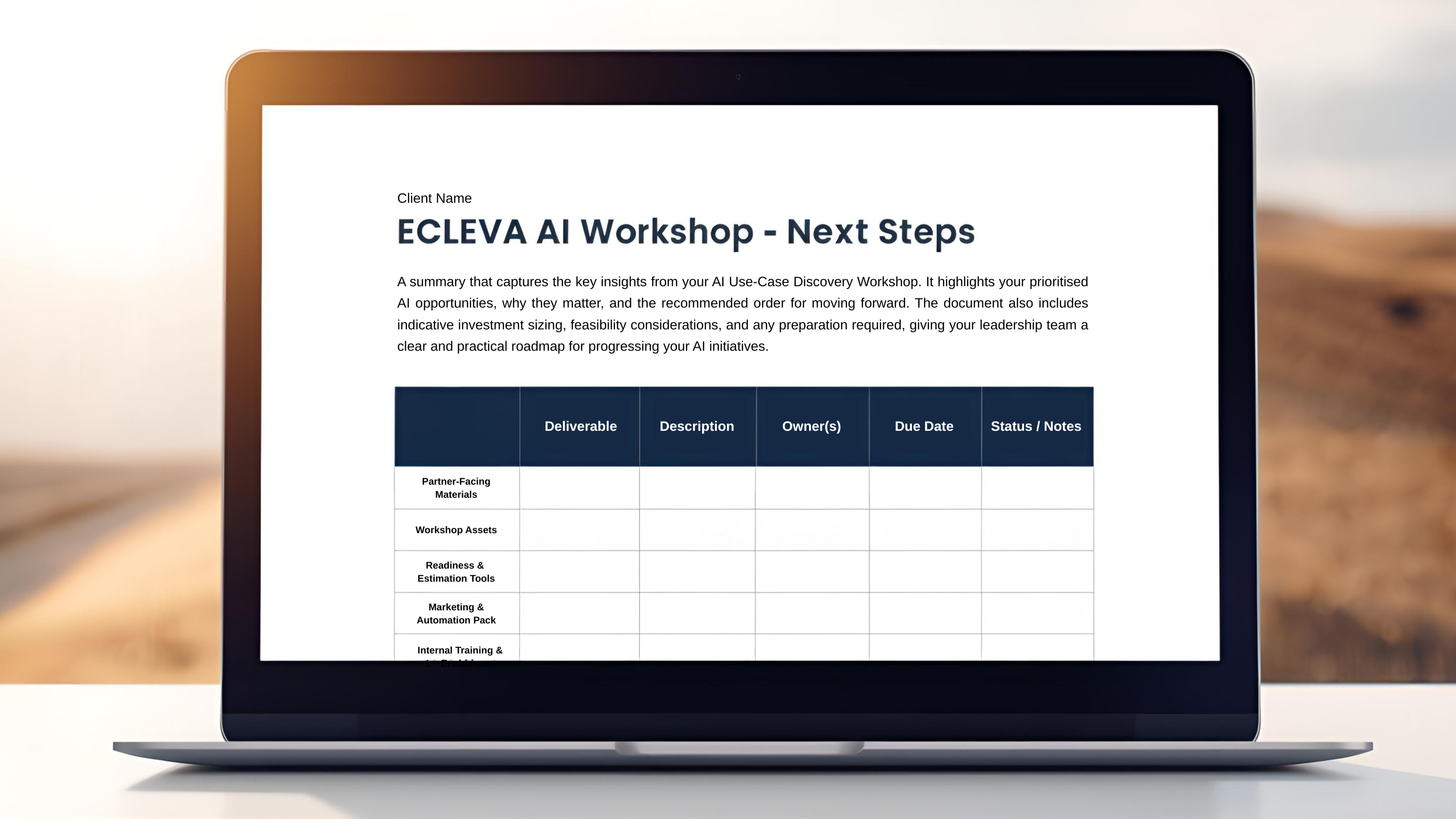
We begin by exploring the parts of your organisation where work feels slow, repetitive, inefficient or difficult to scale. This includes operational bottlenecks, manual processes, disconnected systems, high-touch workflows, and areas where teams rely heavily on workarounds. The goal is to understand the real challenges behind your daily operations so we can identify processes that are strong candidates for improvement, automation or AI assistance.

Slide
In-Workshop
Step 2: Prioritise What Matters Most

Not all problems are equal. In this stage, your team collaboratively prioritises the challenges identified, ranking them based on business impact, urgency, and strategic importance.

This ensures the workshop stays focused on what truly matters — not theoretical use cases — and that every opportunity we identify is anchored to real, agreed business priorities.

Slide
Post-Workshop
Step 3: Map AI & Automation Opportunities

Following the session, ECLEVA translates your prioritised challenges into practical AI and automation opportunities that align to your current Microsoft environment, such as:

Microsoft 365 & Copilot
Dynamics 365 & Business Central
Power Platform (Power Apps, Power Automate, Power BI)
Each opportunity is assessed using a Value × Ease framework, clearly highlighting:

Quick wins
High-impact initiatives
Opportunities requiring more planning or investment
We then present these findings back to your team, walking you through the prioritisation, recommended sequencing, and logical next steps. You’ll receive a clear, visual prioritisation that makes decision-making easy.

Slide
Post-Workshop + Optional Next Phase
Step 4: Feasibility & Readiness Check

We complete a high-level feasibility and readiness check, covering:

Data availability and quality
System and integration readiness
Security, governance, and compliance considerations
Risks, blockers, and any preparation required
The outcome is a clear, actionable roadmap outlining recommended next steps, sequencing, and indicative effort.

If you choose to proceed, ECLEVA can support you through:

Detailed solution design
Proofs of concept or pilots
Implementation and change enablement
Always at your pace, aligned to your goals.

Slide
LEAVE WITH A CLEAR, ACTIONABLE ROADMAP
Step 5: Recommended Next Steps

At the end of the workshop, we consolidate your insights into a clear, practical set of next steps. This includes prioritized opportunities, suggested sequencing, indicative effort levels and a path that aligns to your goals, technology landscape and operational priorities. You leave with an actionable starting point — something you can share with leadership or use to guide your internal planning.

previous arrow
next arrow